
Table of Contents
Creating Sprite Sheets for ORX with TexturePacker
Getting TexturePacker
First, download and install TexturePacker.
Creating a sprite sheet
To create a sprite sheet for ORX:
- Import Sprites: Drag & drop a folder containing your sprite images onto the left panel of TexturePacker.
- Select Format: In the “Data Format” dropdown on the right panel, select ORX.
- Publish: Click the Publish sprite sheet button in the toolbar to generate your files.
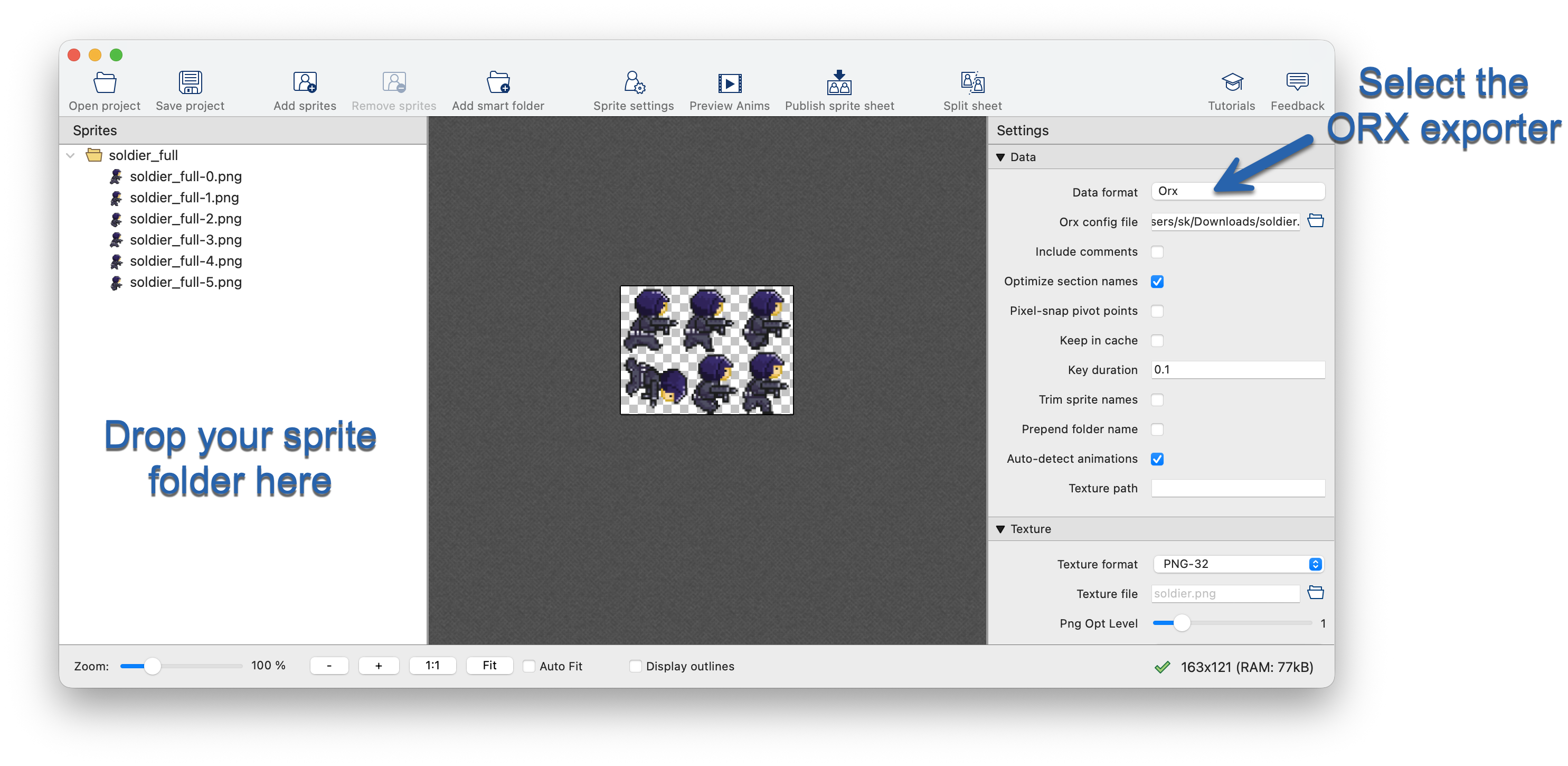
You can use the settings in the right panel to fine-tune your configuration, including texture format and packing algorithms.
Note on Optimization: TexturePacker automatically optimizes sprite sheets to reduce memory usage by trimming transparent areas around sprites. The generated ORX data file includes offset information ensuring ORX renders the sprites at their original size and position, so you don't need to adjust your code.
If you need untrimmed sprites, simply change the Trim option to None in the right panel.
Editing pivot points
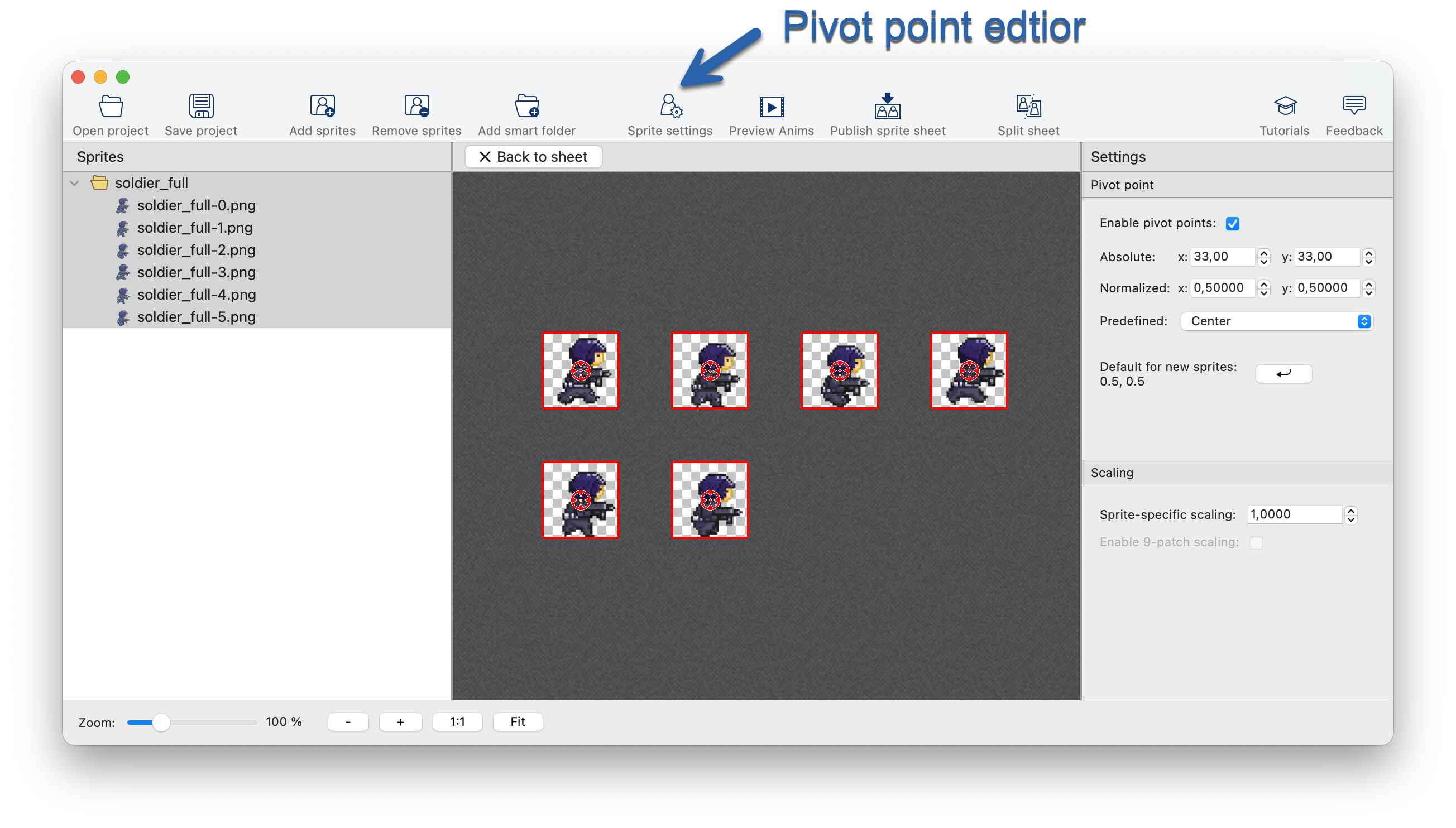
You can visually edit sprite pivot points directly within TexturePacker:
- Click Sprite settings in the toolbar to open the editor.
- In the editor, you can adjust the pivot point for each sprite by dragging the anchor point or selecting a preset (like Center or Bottom).
File format
TexturePacker generates two files:
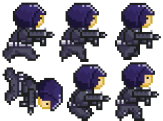
Sprite sheet
The sprite sheet contains all your sprites packed into a single image.
Data file
The data file (in `.ini` format) describes the sprites in the sheet. It defines the texture source, dimensions, and importantly, the individual frames of your animations.
Each frame section (e.g., `[SoldierFullAnim1]`) retains the original sprite's properties:
- TextureOrigin: The position of the sprite in the sheet.
- TextureSize: The dimensions of the trimmed sprite.
- Pivot: The pivot point you set in the editor.
[Soldier]
Texture       = soldier.png
TextureSize   = (163, 121)

[SoldierFullAnimationSet]
Texture       = @Soldier
KeyDuration   = 0.1
StartAnim     = SoldierFullAnim

[SoldierFullAnim1]
TextureOrigin = (1, 66)
TextureSize   = (63, 51)
Pivot         = (22, 30)
Orientation   = right

[SoldierFullAnim2]
TextureOrigin = (114, 61)
TextureSize   = (47, 59)
Pivot         = (18, 26)

[SoldierFullAnim3]
TextureOrigin = (66, 63)
TextureSize   = (46, 57)
Pivot         = (18, 24)

[SoldierFullAnim4]
TextureOrigin = (1, 1)
TextureSize   = (55, 63)
Pivot         = (22, 31)

[SoldierFullAnim5]
TextureOrigin = (58, 1)
TextureSize   = (51, 60)
Pivot         = (18, 27)

[SoldierFullAnim6]
TextureOrigin = (114, 1)
TextureSize   = (48, 58)
Pivot         = (18, 25)


